⚙️ 07. EC2 Instance IAM Roles
When your EC2 instance needs to access other AWS services (like S3, DynamoDB, or CloudWatch),
you must give it permissions.
You have two main ways to do that:
- By using Access Keys (bad practice)
- By using IAM Roles (best practice) ✅
⚠️ Why Not Use Access Keys?
Using Access Keys directly on EC2 instances is insecure and hard to manage:
| Problem | Explanation |
|---|---|
| ❌ Security Risk | Keys are stored on the instance anyone with access can steal them. |
| ❌ Hard to Rotate | If you rotate (change) keys, you must manually update them on all instances. |
| ❌ Accidental Exposure | Keys can be leaked in logs, scripts, GitHub repositories, etc. |
| ❌ Manual Setup | Requires configuring AWS CLI manually on every instance. |
💡 Never store AWS Access Keys inside code, environment variables, or EC2 instances.
✅ What Are IAM Roles?
An IAM Role is a secure identity that defines permissions for AWS services.
When you assign a role to an EC2 instance, it can automatically access AWS services without using access keys.
Example:
If an EC2 instance needs to read files from an S3 bucket:
- You create an IAM Role with the policy
AmazonS3ReadOnlyAccess. - You attach that role to your EC2 instance.
- The EC2 instance can now access S3 automatically through its role.
⚙️ How to Set Up an IAM Role for EC2
Step 1: Create an IAM Role
- Go to IAM Console → Roles → Create Role.
- Choose Trusted Entity Type:
AWS Service. - Choose Use Case:
EC2. - Click Next.
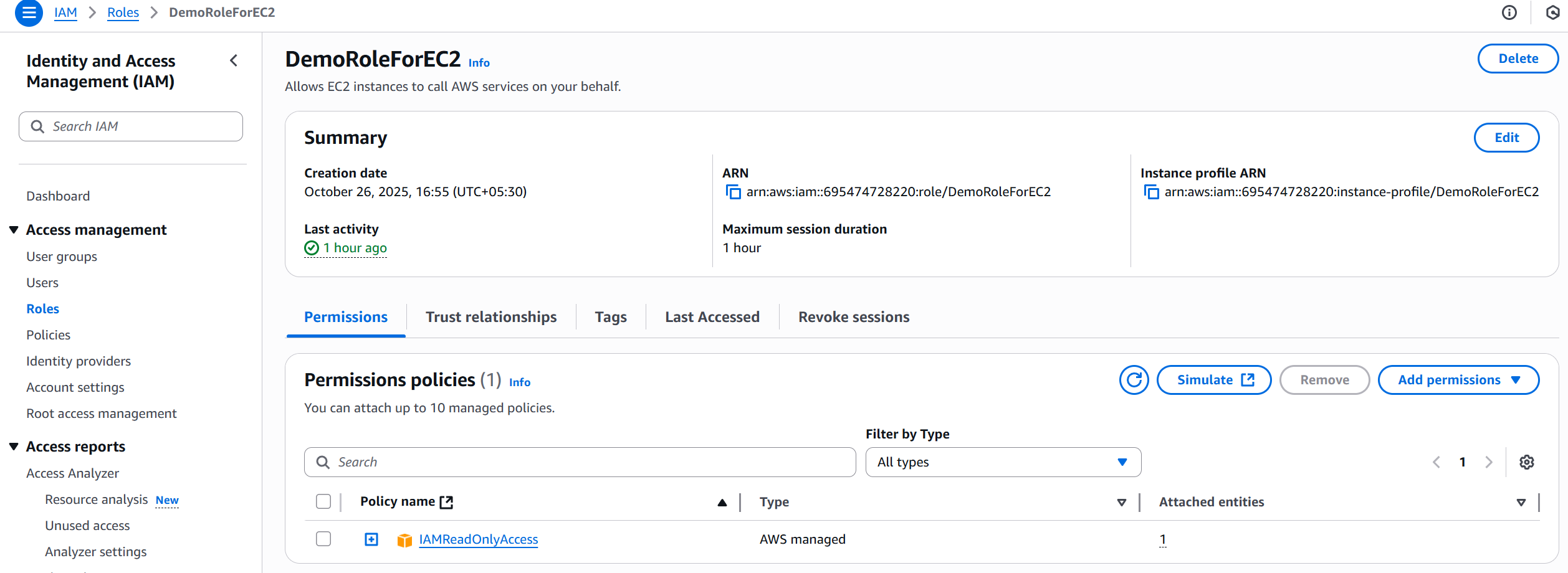
Step 2: Attach a Permission Policy
- Select a policy based on what your EC2 needs to do:
IAMReadOnlyAccessAmazonDynamoDBFullAccess
- Click Next and give your role a name (e.g.,
EC2S3AccessRole). - Click Create Role.
Step 3: Attach the Role to an EC2 Instance
Option 1: When Launching a New Instance
- In the EC2 Launch Wizard, under “IAM Role”, select the role you created.
- Continue the setup and launch the instance.
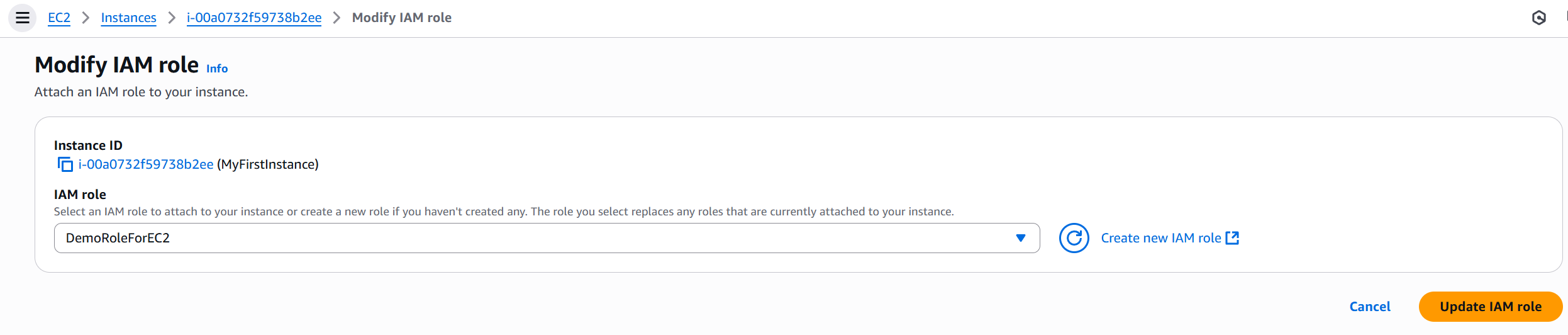
Option 2: For an Existing Instance
- Go to EC2 Console → Instances → Select your instance.
- Click Actions → Security → Modify IAM Role.
- Choose your role and click Update IAM Role.
🧰 Verifying Role Access
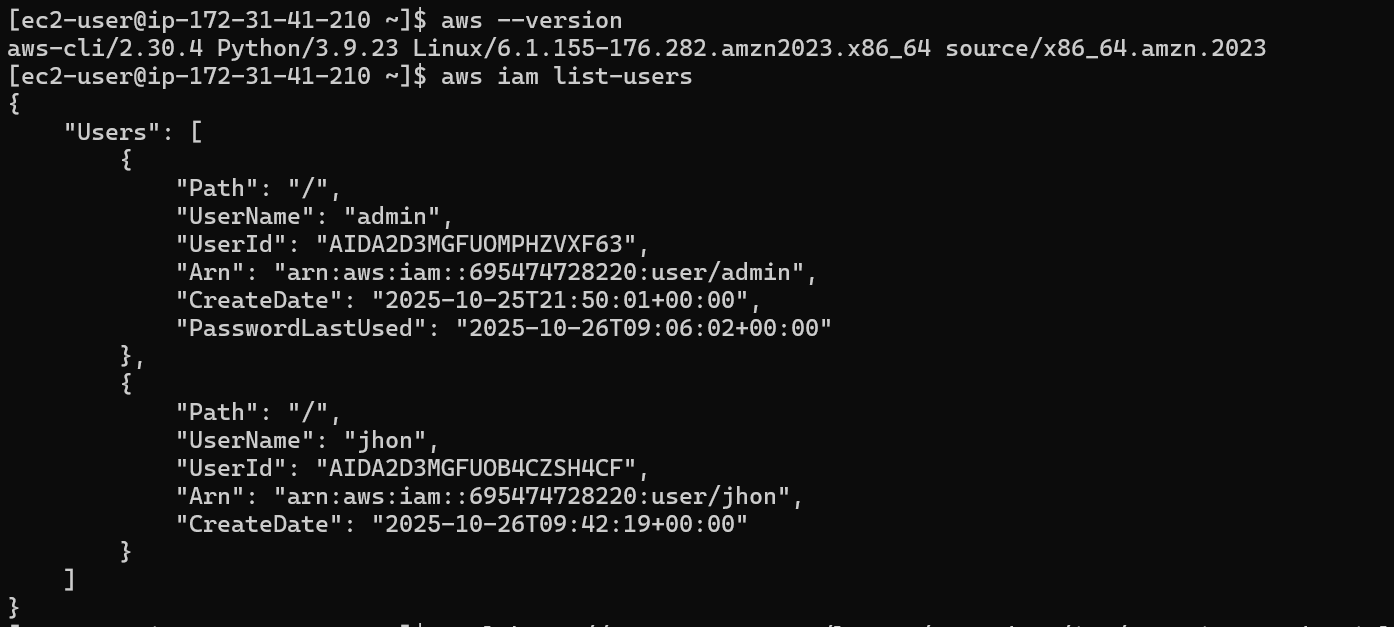
Once attached, SSH into your instance and test access: