04. Hosting Static Website in S3
Amazon S3 can be used not only for storing data but also for hosting static websites.
A static website typically includes HTML, CSS, JavaScript, and image files — no backend logic or server processing.
When configured properly, S3 serves these files over the internet with a public website endpoint.
🧩 Key Concepts
| Concept | Description |
|---|---|
| Static Website Hosting | Enables your S3 bucket to act as a web server for hosting static content. |
| Website Endpoint | A public URL automatically generated by S3 once static hosting is enabled. |
| Index Document | The homepage (e.g., index.html) displayed when users visit the site root. |
| Bucket Policy | Defines public access permissions for your bucket’s content. |
| Public Read Access | Required to make your website visible to everyone on the internet. |
⚙️ Steps to Host a Static Website on S3
Step 1 — Create an S3 Bucket
- Go to the AWS Management Console → S3.
- Click Create bucket.
- Enter a unique bucket name (e.g.,
my-coffee-website). - Choose a region (e.g.,
ap-south-1). - Under Block Public Access settings, uncheck “Block all public access”.
- Confirm acknowledgment → Click Create bucket.
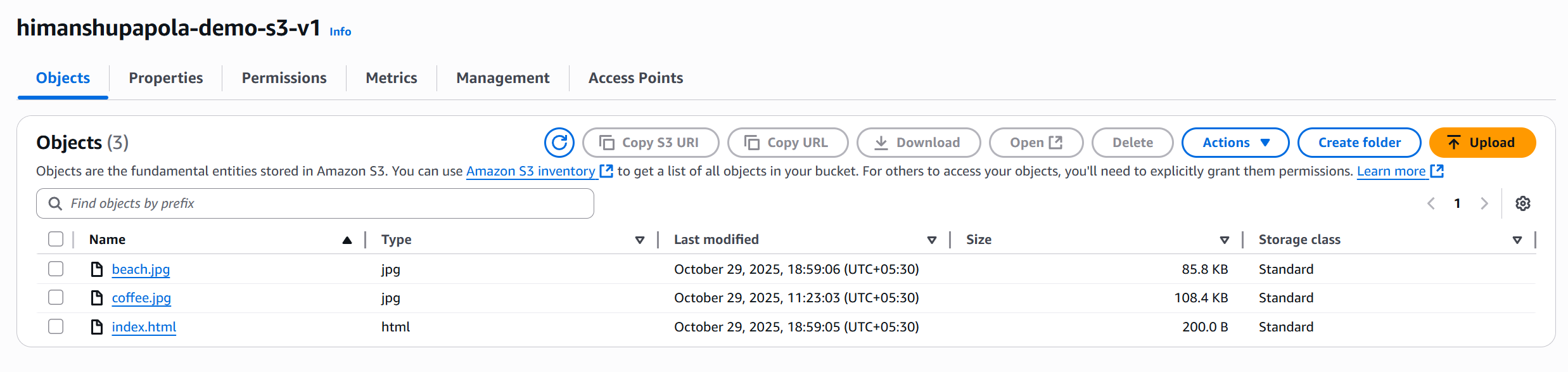
Step 2 — Upload Website Files
- Open your bucket.
- Click Upload → Add files.
- Upload:
index.htmlcoffee.jpgbeach.jpg
- Click Upload.
Step 3 — Enable Static Website Hosting
- Go to the Properties tab of your bucket.
- Scroll to Static website hosting → Click Edit.
- Choose Enable.
- Select Host a static website.
- In Index document, enter: index.html
- Click Save changes.

Step 4 — Make Files Public
- Go to the Permissions tab.
- Under Bucket policy, click Edit.
- Add the following JSON policy:
{
  "Version": "2012-10-17",
  "Statement": [
    {
      "Sid": "Statement1",
      "Effect": "Allow",
      "Principal": "*",
      "Action": "s3:GetObject",
      "Resource": "arn:aws:s3:::himanshupapola-demo-s3-v1/*"
    }
  ]
} - Save the policy.
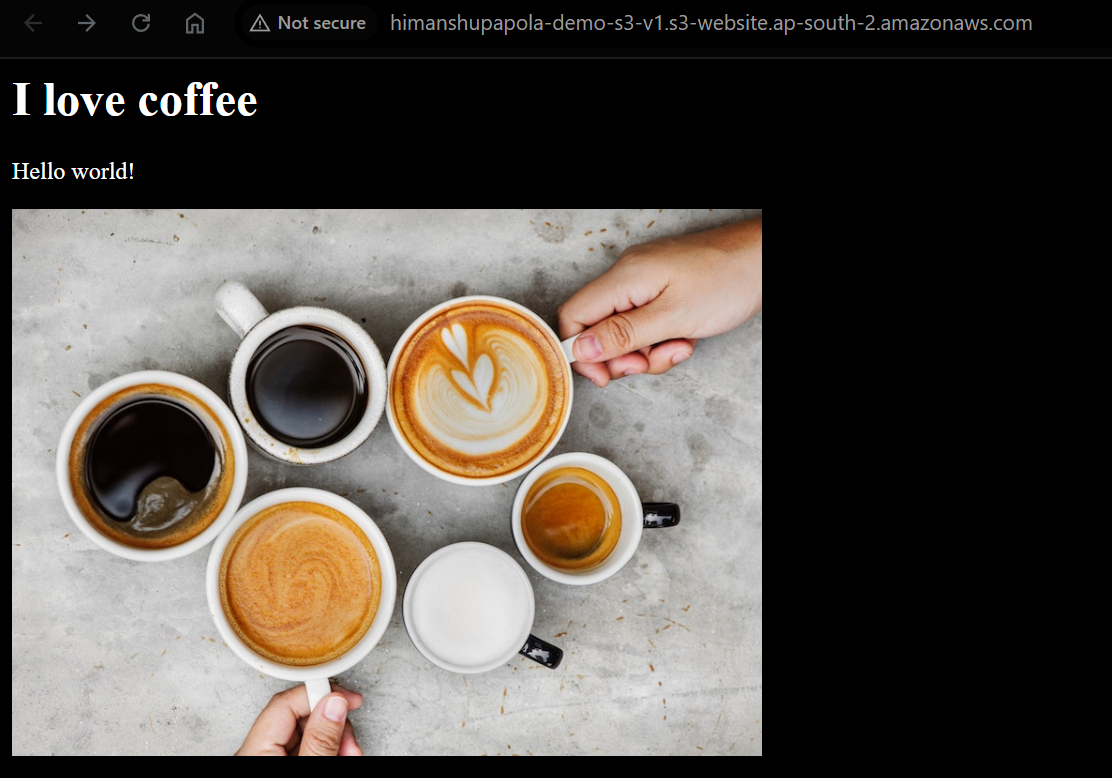
Step 5 — Access Your Website
-
Return to the Properties tab.
-
Scroll down to Static website hosting.
-
Copy the Bucket website endpoint (URL).
-
Paste it into your browser.
Example URLs:
http://himanshupapola-demo-s3-v1.s3-website.ap-south-2.amazonaws.com
🧠 Troubleshooting
| Issue | Cause | Fix |
|---|---|---|
| 403 Forbidden Error | Bucket or objects are not public | Ensure bucket policy allows s3:GetObject for Principal: * |
| Index not loading | Missing index.html file | Upload or rename your homepage file to index.html |
| Image not displaying | Wrong file path or permissions | Verify correct object key and public access |
✅ Summary
- Amazon S3 can host static websites (HTML, CSS, JS, images).
- Enable Static website hosting under Properties.
- Ensure public read access via a bucket policy.
- Access your site using the S3 website endpoint URL.