🌐 03. S3 Bucket Policy Hands On
In this hands-on, we’ll make an S3 bucket publicly accessible so that files (e.g., coffee.jpg) can be viewed via a public URL.
🧩 01. Allow Public Access
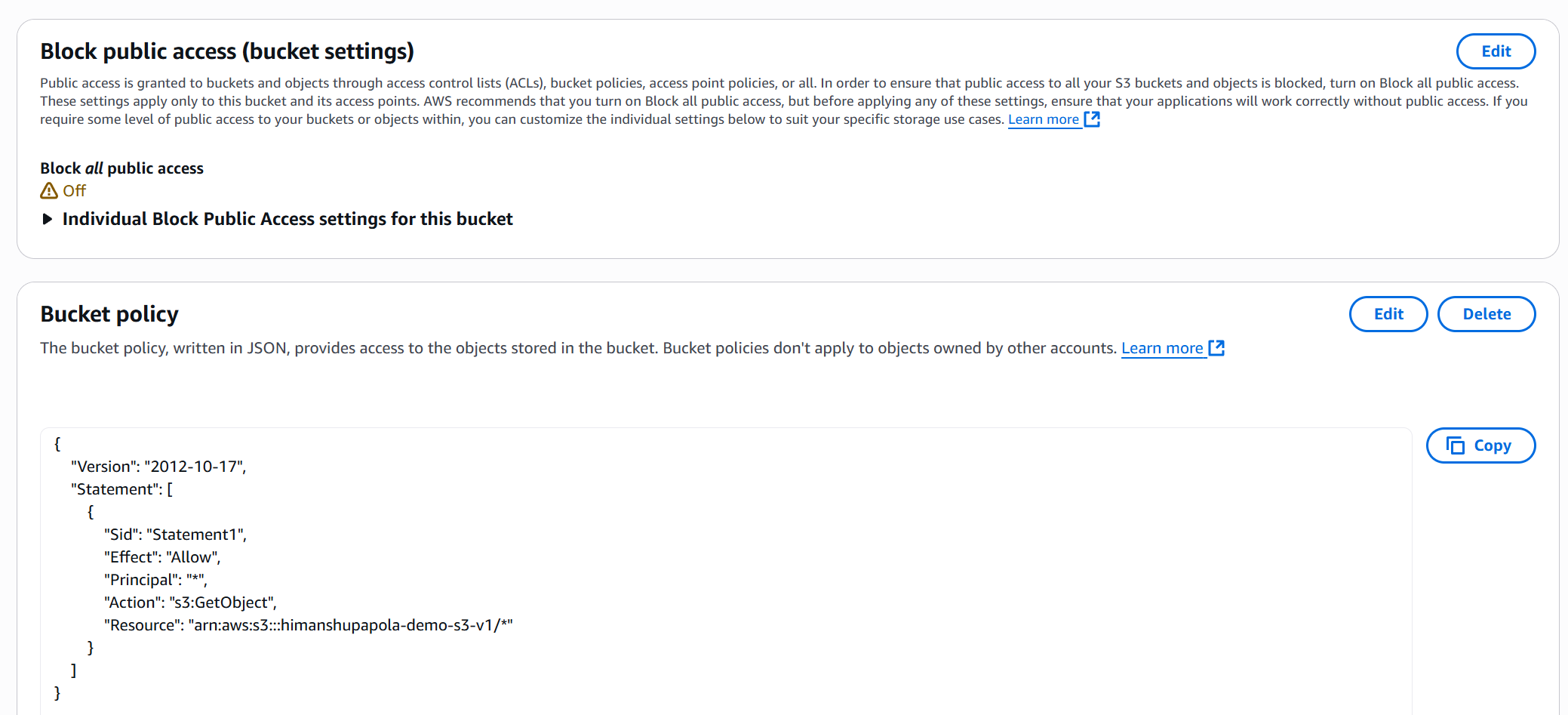
- Go to your S3 bucket → Permissions tab.
- Under Block Public Access, click Edit.
- Untick all options that block public access.
- Confirm by clicking Save changes.
⚠️ Only disable this if you intentionally want a public bucket (e.g., for static website hosting).
🧱 02. Create a Bucket Policy
-
Scroll to Bucket Policy and click Edit Policy.
-
Use the AWS Policy Generator:
- Select Type: S3 Bucket Policy
- Effect: Allow
- Principal:
* - Action:
s3:GetObject - ARN:
arn:aws:s3:::your-bucket-name/*
-
Generate and copy the JSON.
🧾 03. Example Policy
{
  "Version": "2012-10-17",
  "Statement": [
    {
      "Sid": "PublicReadAccess",
      "Effect": "Allow",
      "Principal": "*",
      "Action": "s3:GetObject",
      "Resource": "arn:aws:s3:::your-bucket-name/*"
    }
  ]
}
- Paste this JSON into the Bucket Policy Editor and Save changes.
- Ensure there are no extra spaces or syntax errors.
🌍 04. Verify Public Access
- Go to Objects → select your file (e.g.,
coffee.jpg). - Copy the Object URL.
- Open it in a browser.
✅ If configured correctly, the image should display publicly.

🧠 Summary
| Step | Action | Purpose |
|---|---|---|
| 1 | Disable Block Public Access | Allow public policies to work |
| 2 | Create Policy with Principal: * | Grant global read access |
| 3 | Apply Policy | Make bucket objects public |
| 4 | Test URL | Confirm accessibility |
📌 Result: Your coffee.jpg file (and other objects) are now publicly viewable via a direct S3 URL.