05. AWS Lambda Overview
AWS Lambda is a serverless compute service that lets you run code without provisioning or managing servers. It executes your code in response to events such as API calls, file uploads, or scheduled jobs.
🧩 EC2 vs Lambda
| Feature | EC2 | AWS Lambda |
|---|---|---|
| Type | Virtual servers in the cloud | Virtual functions – no servers to manage |
| Execution | Continuously running | Run on-demand |
| Limits | Bounded by RAM & CPU | Bounded by execution time |
| Scaling | Manual / Auto Scaling setup | Fully automated scaling |
| Billing | Pay for uptime (even if idle) | Pay only per request & duration |
💡 Why AWS Lambda?
- 🧱 No Server Management – AWS handles provisioning and scaling.
- ⚙️ Automatic Scaling – Scales instantly from 1 request/day to thousands/second.
- 🔁 Event-Driven – Runs only when triggered by an event (e.g., S3 upload, API call).
- 💰 Simple Pricing – Pay per request and per compute time.
- 🧰 Fully Integrated – Works with other AWS services like S3, DynamoDB, API Gateway, CloudWatch.
- 📊 Easy Monitoring – Integrated with Amazon CloudWatch.
- 🚀 Flexible Resources – Up to 10GB RAM per function, with proportional CPU & network improvements.
🧠 Example Use Cases
🖼️ Serverless Thumbnail Creation
| Step | Service | Action |
|---|---|---|
| 1 | Amazon S3 | User uploads an image |
| 2 | AWS Lambda | Triggered by S3 upload event |
| 3 | Lambda Function | Generates thumbnail & metadata |
| 4 | Amazon S3 / DynamoDB | Stores thumbnail or metadata |
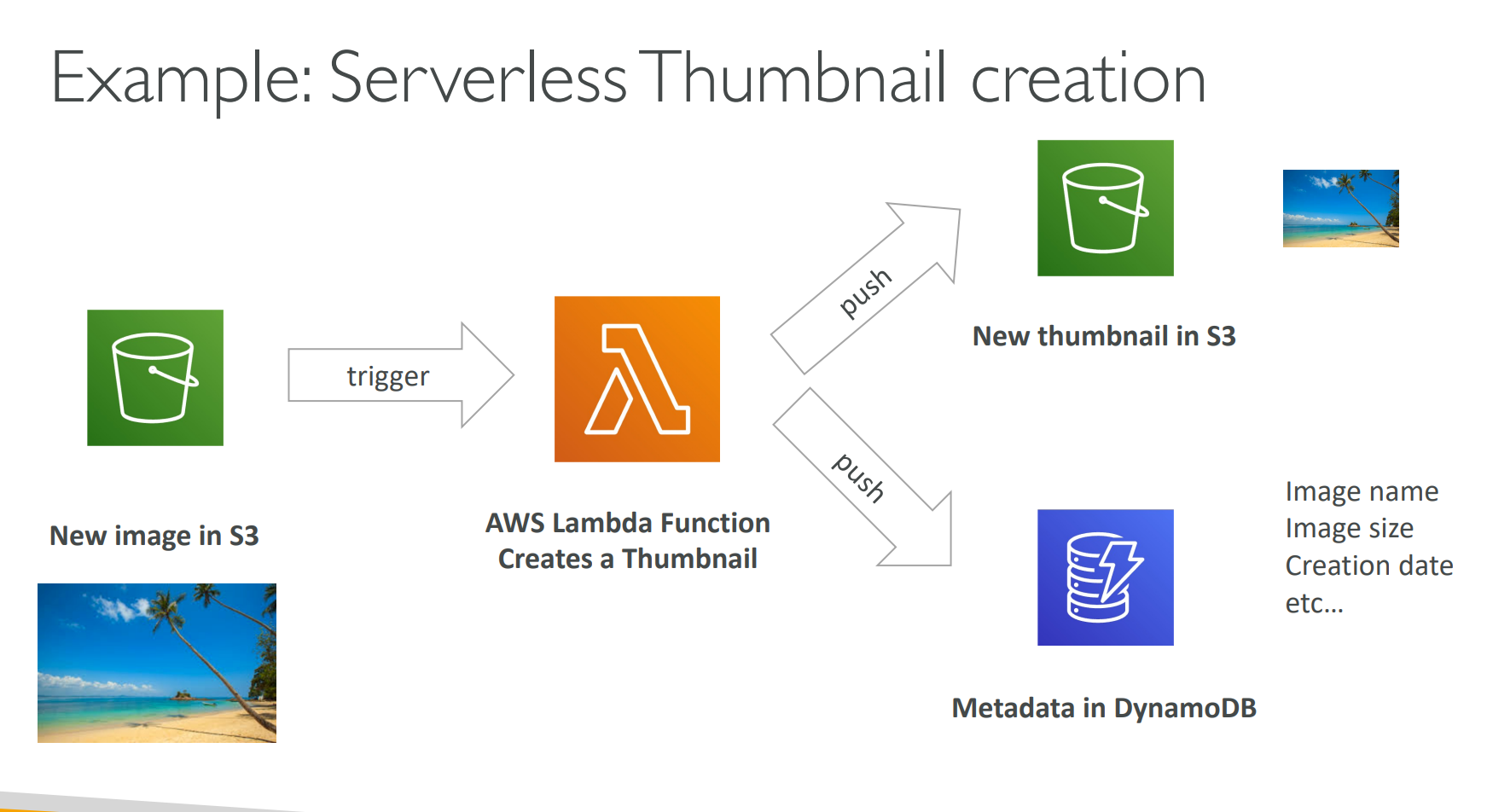
✅ Fully serverless – no servers for S3, Lambda, or DynamoDB.
⏰ Serverless CRON Jobs
Use CloudWatch Events / EventBridge to trigger a Lambda function on a schedule (e.g., every hour or every day).
This replaces traditional Linux CRON jobs — completely serverless and automated.
🧑💻 AWS Lambda Language Support
Supported Languages:
- Node.js, Python, Java, C# (.NET Core / PowerShell), Ruby, Go,
- Custom Runtime (via API – e.g., Rust, Golang)
- Container Image (with Lambda Runtime API)
🟢 For exam purposes: Use ECS or Fargate for running general Docker containers, even though Lambda supports them.
💵 AWS Lambda Pricing
AWS Lambda charges you for how often your function runs (requests) and how long it runs (duration).
You get a free tier every month, and billing is extremely precise — per millisecond.
⚙️ Pricing Breakdown
| Pricing Metric | Details |
|---|---|
| Requests | 1M requests/month free, then $0.20 per 1M requests |
| Duration (GB-seconds) | 400,000 GB-seconds/month free |
| Example | 400,000 sec @ 1GB RAM OR 3,200,000 sec @ 128MB RAM |
| After Free Tier | $1 per 600,000 GB-seconds |
| Billing Granularity | Per 1 millisecond |
🧠 How It Works
- Requests: Every time your function runs = 1 request.
- Duration: Based on execution time × memory size (GB-seconds).
- GB-second:
- 1 second at 1GB = 1 GB-second
- 1 second at 128MB = 0.125 GB-seconds
💰 Example
If your function runs 2 million times, uses 128 MB memory, and each run takes 1 second:
- Requests: 1M free → 1M paid = $0.20
- Duration: 2M × 1 sec × 0.125 GB = 250,000 GB-sec → within free tier
✅ Total Cost = $0.20
💡 Lambda pricing = pay per call + pay per duration
It’s highly cost-effective for event-driven, short, and scalable workloads.
🧾 Summary
- Serverless compute platform for running code in response to events.
- No servers, auto-scaling, event-driven, and cost-efficient.
- Pay only for what you use, with a generous free tier.
- Ideal for: automation scripts, backend APIs, data processing, image processing, and scheduled tasks.
5.1. Creating an AWS Lambda Function
This guide explains step-by-step how to create, configure, test, and monitor an AWS Lambda function using the AWS Management Console.
🧱 Step 1: Open the Lambda Console
- Sign in to the AWS Management Console.
- Search for Lambda in the search bar and open the AWS Lambda service.
- Click Create function.
⚙️ Step 2: Choose a Creation Method
Select Author from scratch (you can also use a Blueprint, Container image, or upload existing code later).
- Function name:
HelloLambda - Runtime: Python 3.x (or Node.js, Java, etc.)
- Architecture: x86_64 (default)
- Permissions: Create a new role with basic Lambda permissions
🔐 Step 3: Set Permissions
- Lambda requires an IAM role to execute.
- Choose Create a new role with basic Lambda permissions.
- This role allows your Lambda to write logs to CloudWatch.
You can later modify this role to grant access to:
- Amazon S3
- DynamoDB
- SNS / SQS
- Other AWS services
🧑💻 Step 4: Add Your Function Code
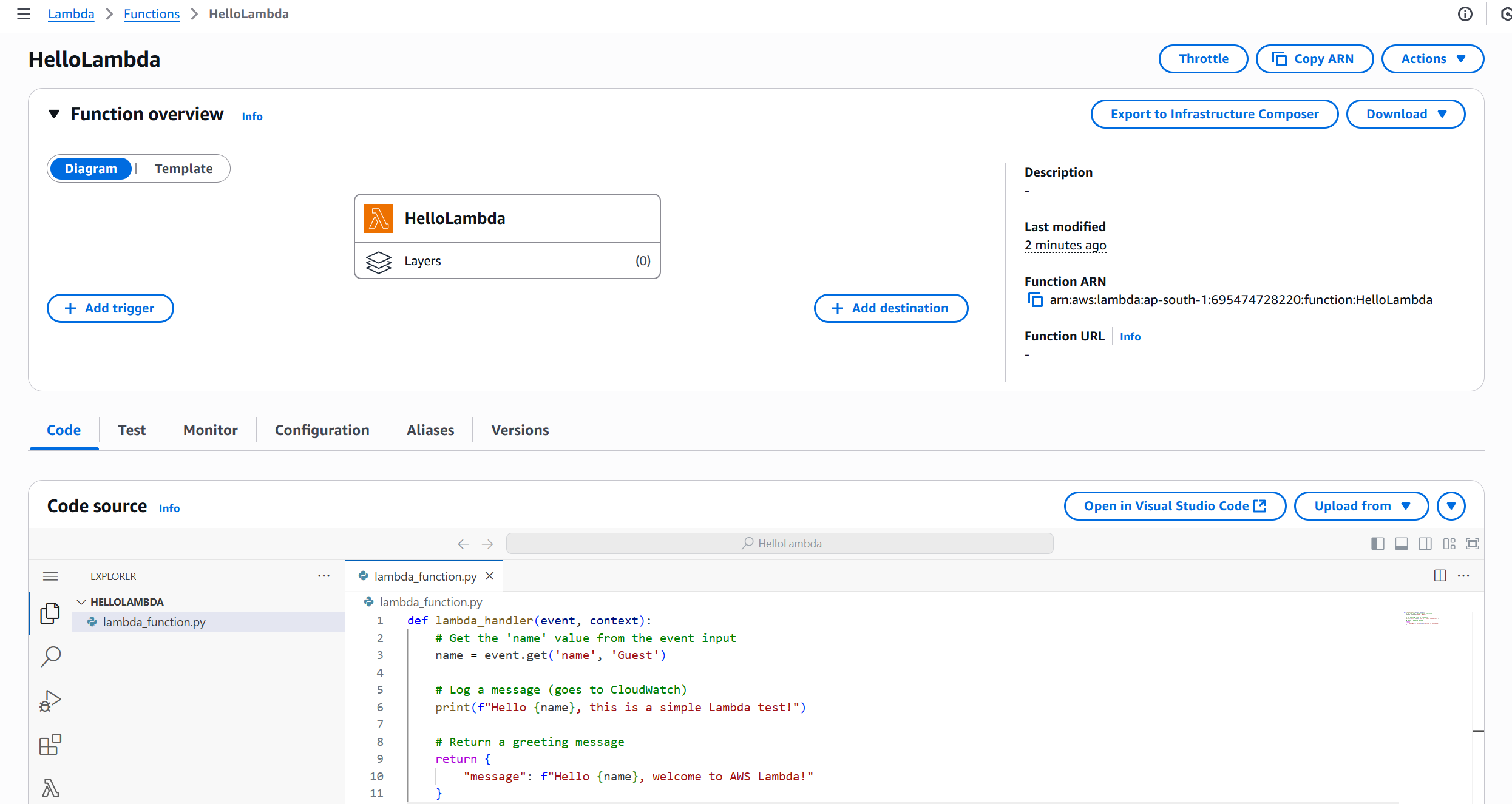
AWS automatically creates a sample Hello World function. Example (Python):
def lambda_handler(event, context):
    # Get the 'name' value from the event input
    name = event.get('name', 'Guest')

    # Log a message (goes to CloudWatch)
    print(f"Hello {name}, this is a simple Lambda test!")

    # Return a greeting message
    return {
        "message": f"Hello {name}, welcome to AWS Lambda!"
    }
Key points:
- Handler:
lambda_handler— main entry point. - Event: carries input data in JSON format.
- Context: contains runtime info (timeout, memory, etc.).
💾 Step 5: Deploy the Function
After editing or verifying the code:
- Click Deploy to save your Lambda code.
- Your function is now ready to invoke manually or via event triggers.
🧪 Step 6: Test the Function
- Click Test (top-right).
- Choose Configure test event.
- Use sample event data:
{
  "name": "Himanshu"
}
- Name the event (e.g.,
Test). - Click Save and Test.
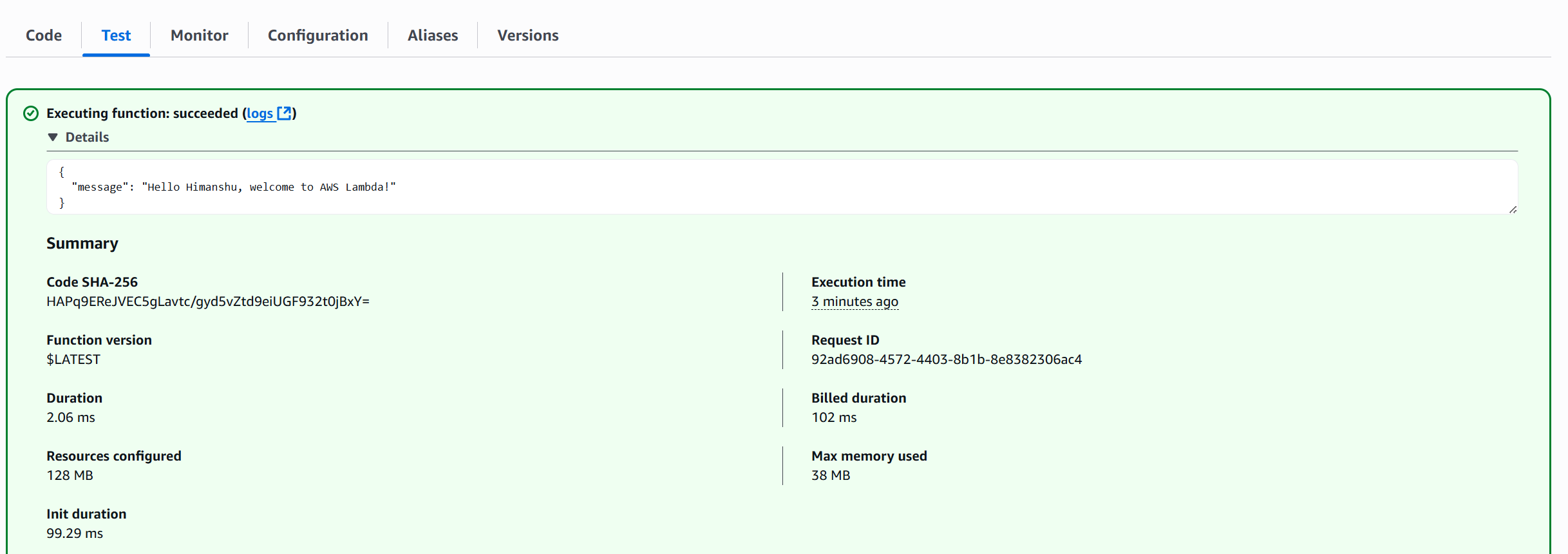
Expected output: Hello Himanshu, welcome to AWS Lambda!
🧠 Step 7: Understand Function Results
- Execution results appear in the console's Execution results panel.
- Context and logs available for debugging.
Common metrics to check:
- Invocation time
- Memory usage
- Execution duration
📊 Step 8: Monitor Function Activity
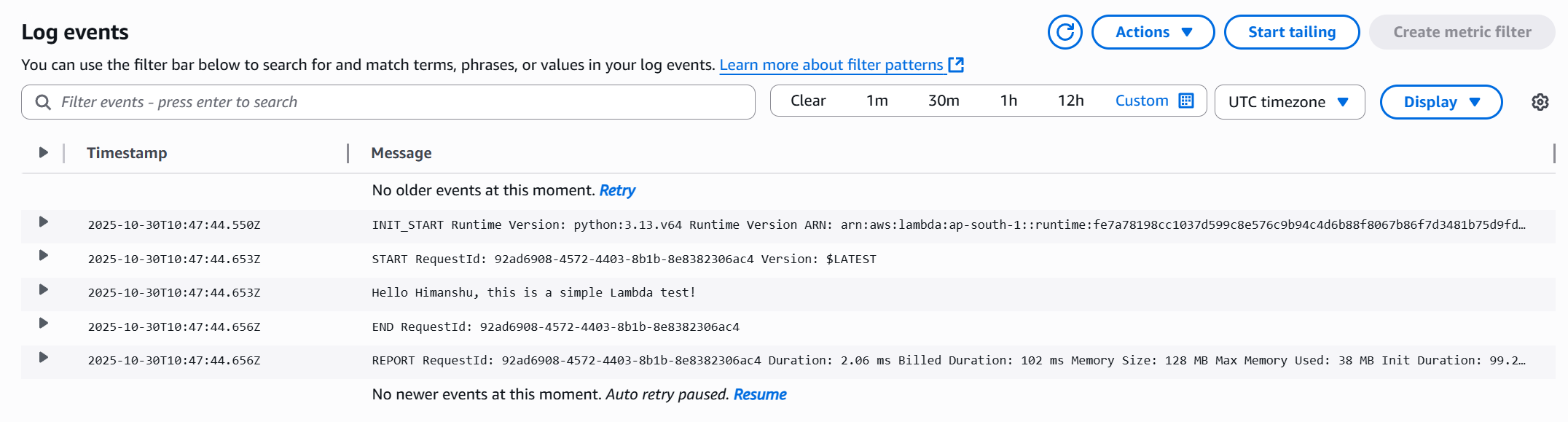
Go to the Monitor tab to view:
- Invocation count
- Duration
- Errors
- Throttles
Click View logs in CloudWatch to see detailed logs like:
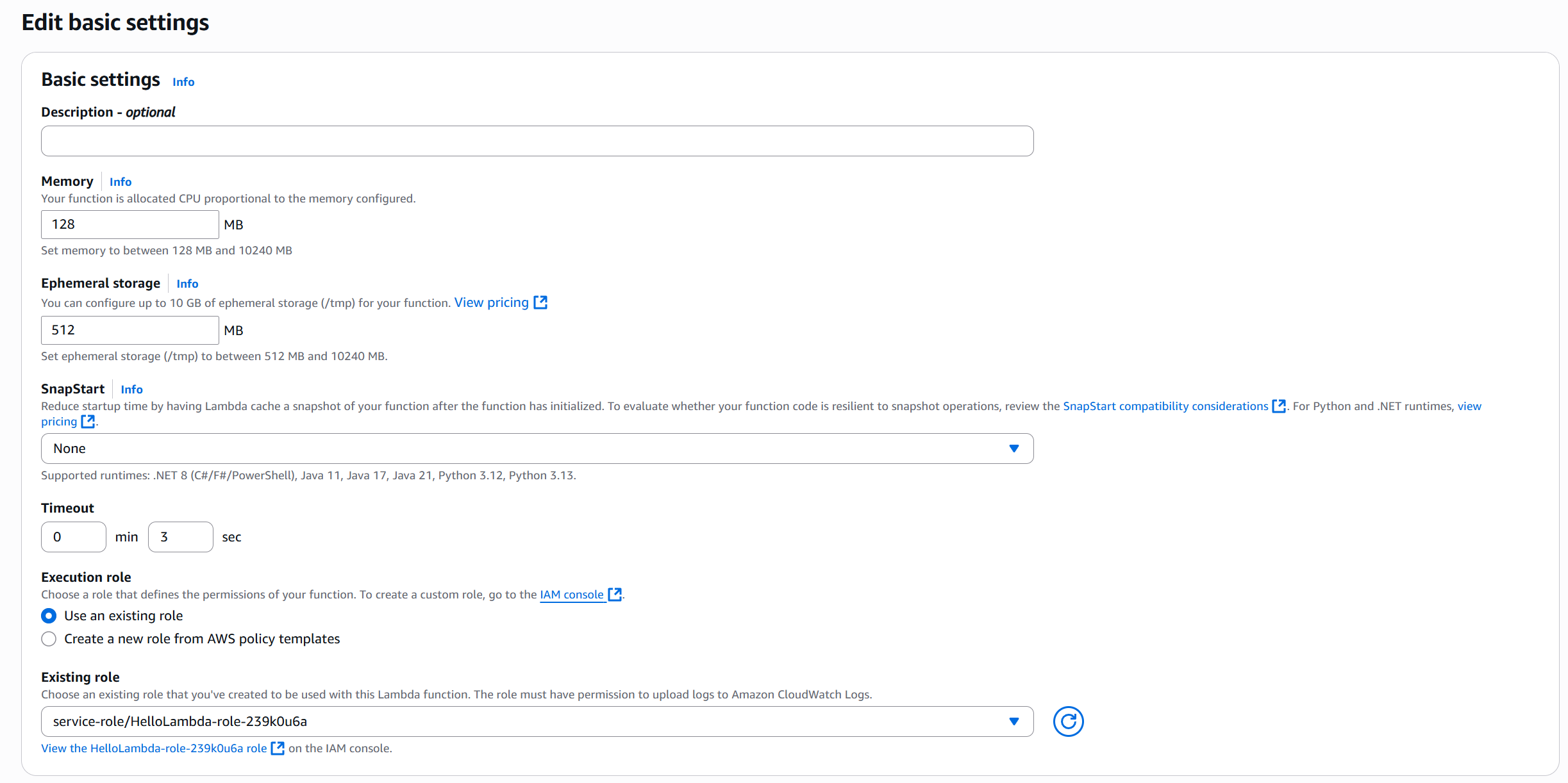
⚙️ Step 9: Configure Function Settings
You can customize:
- Memory (MB): allocate between 128 MB – 10 GB
- Timeout: max execution time before Lambda stops
- Ephemeral storage: temporary space (default 512 MB, max 10 GB)
- Environment variables: define configuration parameters
- VPC: connect Lambda to private networks
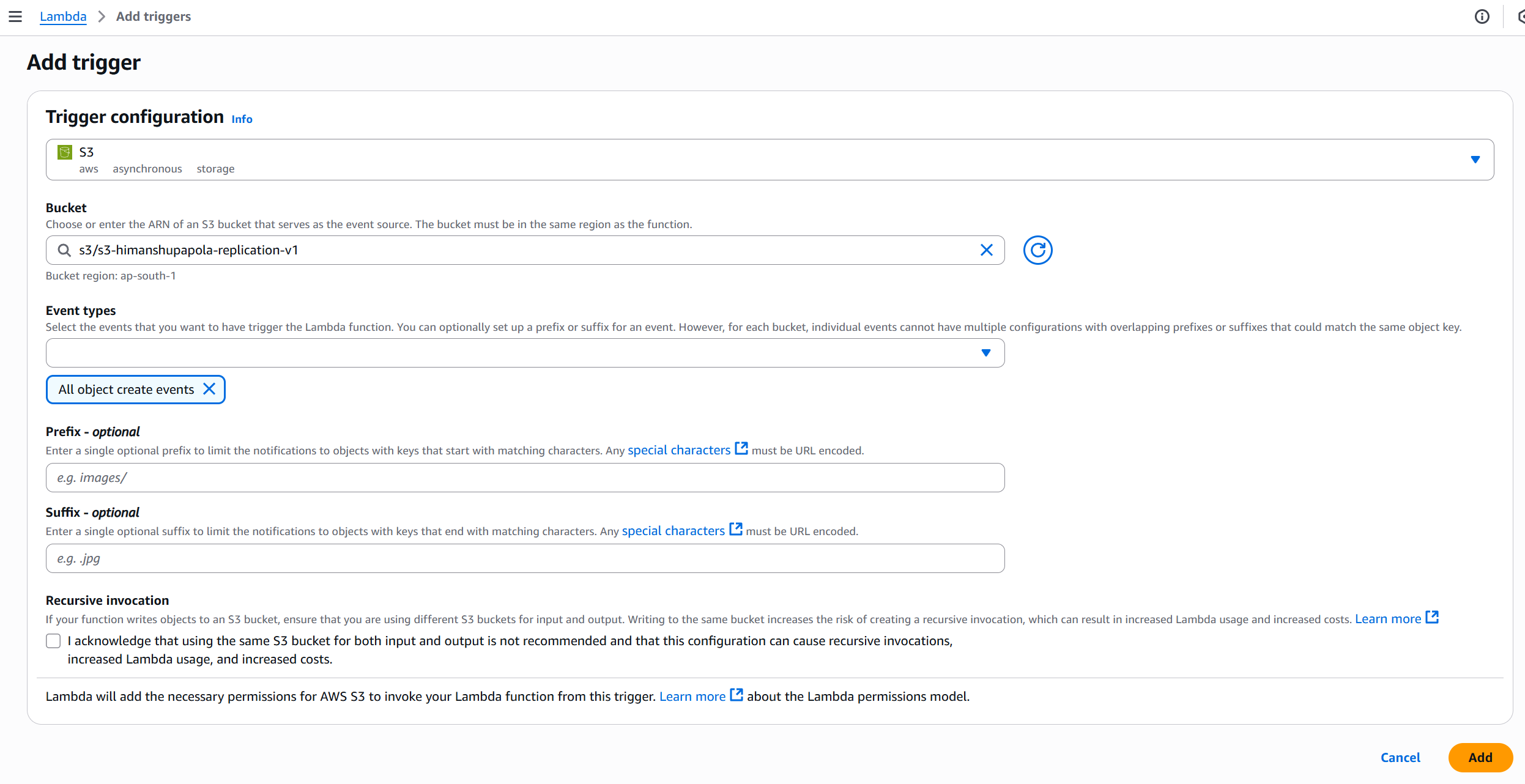
🔗 Step 10: Add Event Triggers
Connect Lambda to various event sources:
- Amazon S3 (on file uploads)
- DynamoDB Streams
- API Gateway
- EventBridge
- SNS / SQS
- Kinesis Data Streams
Example flow: S3 → PutObject → triggers Lambda → Lambda processes file/image
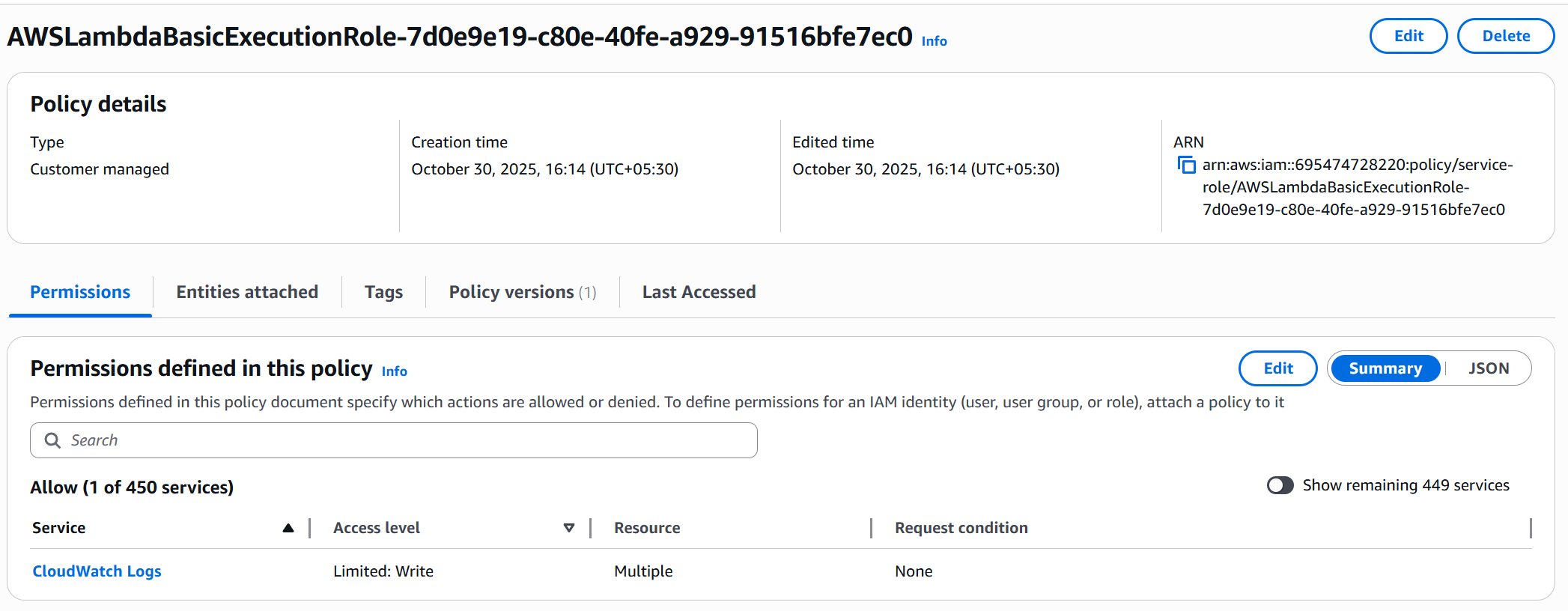
🔐 Step 11: IAM Role and Permissions
- Go to Configuration → Permissions.
- Click the role name to open it in the IAM Console.
- Review attached policy, e.g.,
AWSLambdaBasicExecutionRole— grants CloudWatch logging permissions. - Add more permissions as required (e.g., S3 access).
✅ Step 12: Summary
You have successfully:
- Created a Lambda function (
HelloWorld) - Deployed and tested it
- Viewed CloudWatch logs and metrics
- Learned how to add triggers and manage permissions
AWS Lambda lets you run event-driven, auto-scaling, pay-per-use code without managing servers.