02. CloudFormation Create
This guide walks through creating and updating an AWS CloudFormation stack that launches an EC2 instance, adds security groups, and attaches an Elastic IP (EIP).
Step-by-Step Walkthrough
Step 1: Set Region
- Sign in to the AWS Management Console.
- Switch region to US East (N. Virginia) — us-east-1.
Step 2: Open CloudFormation
- Search for CloudFormation in the console.
- Open the service.
Step 3: Create Stack
- Click Create stack → With new resources (standard).
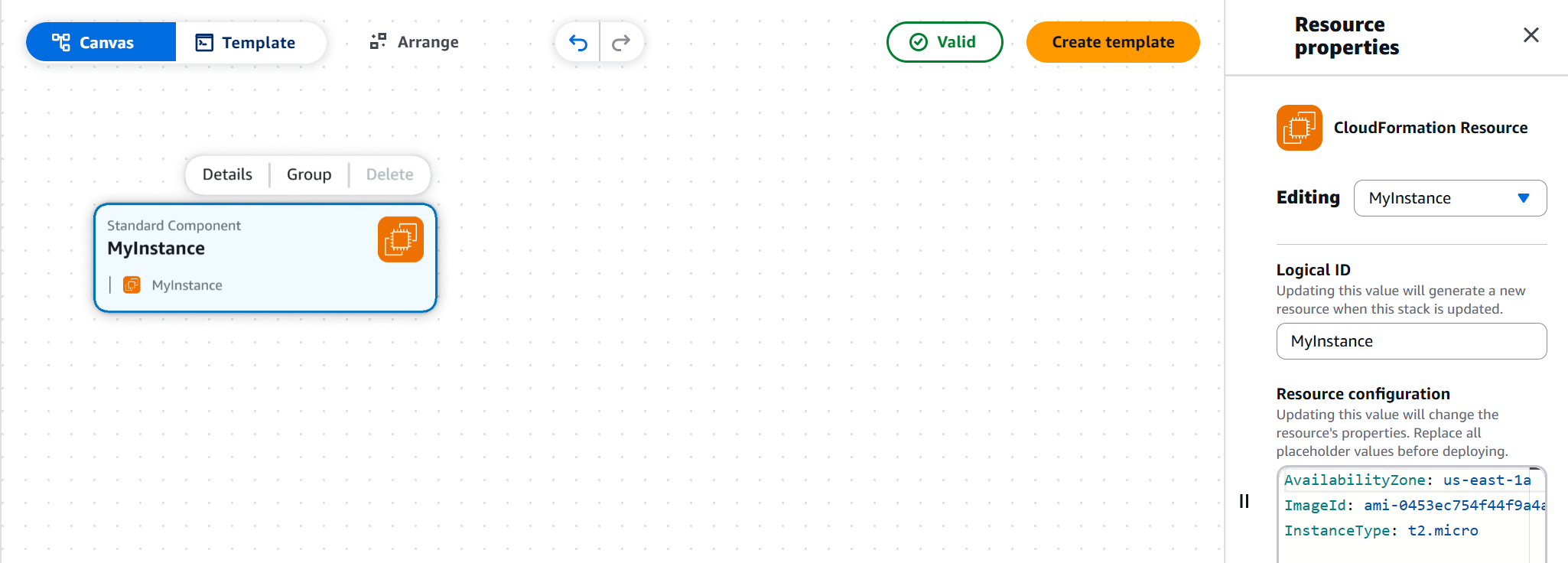
- Choose Upload a template file and select
0-just-EC2.yaml. - Click View in Application Composer to visualize the template.
Step 4: Configure Stack
- Enter Stack name:
demoCloudFormation. - No parameters required for this template.
Step 5: Add Tags
- Add a tag, for example:
Name = CFDemo. - Leave all other options as default.
Step 6: Review and Create
- Review the configuration.
- Click Create stack.
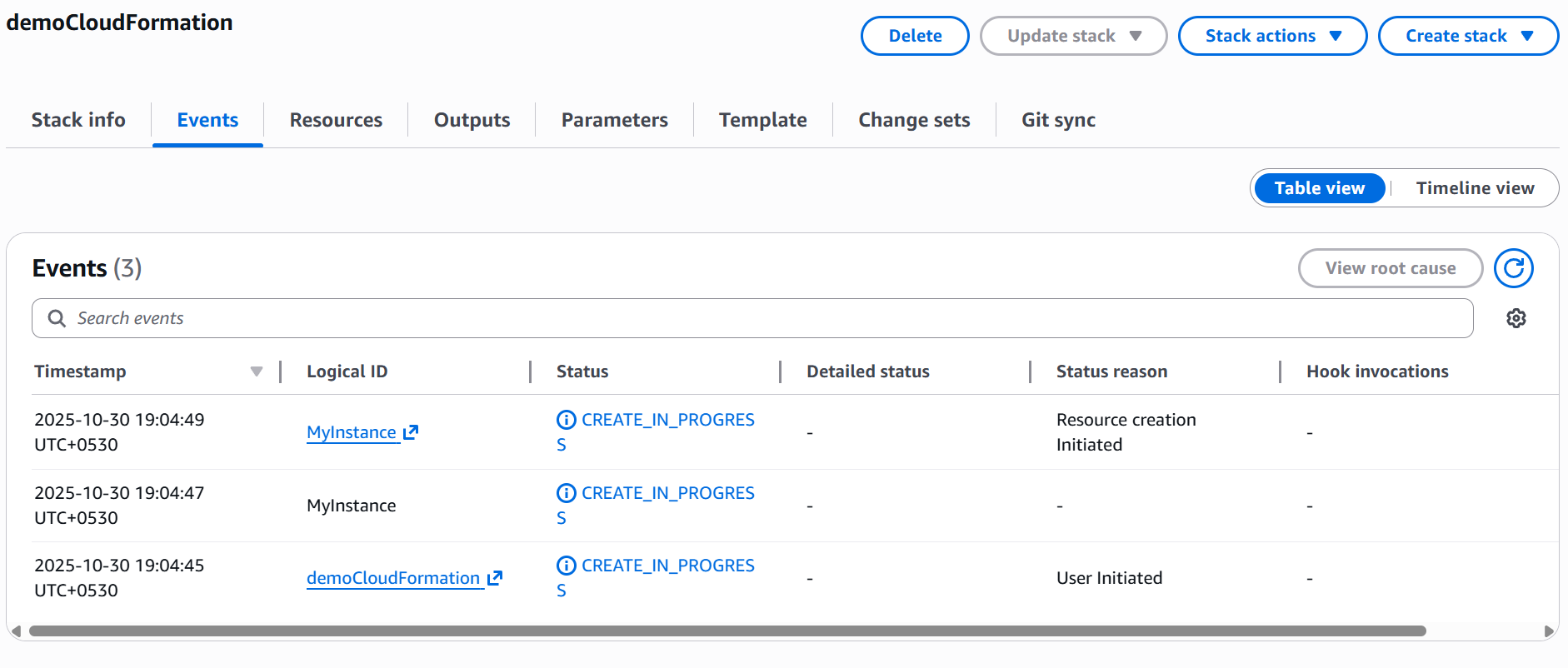
- Monitor progress in the Events tab.
Step 7: Verify EC2 Instance
- Open the EC2 console.
- Confirm:
- Instance Type:
t2.micro - Correct AMI ID
- Tags: CloudFormation +
CFDemo
- Instance Type:
Step 8: Update Stack
- In CloudFormation, select the existing stack → Update.
- Choose Replace current template and upload
1-ec2-with-sg-eip.yaml. - Provide parameters (e.g.,
SecurityGroupDescription = demo description).
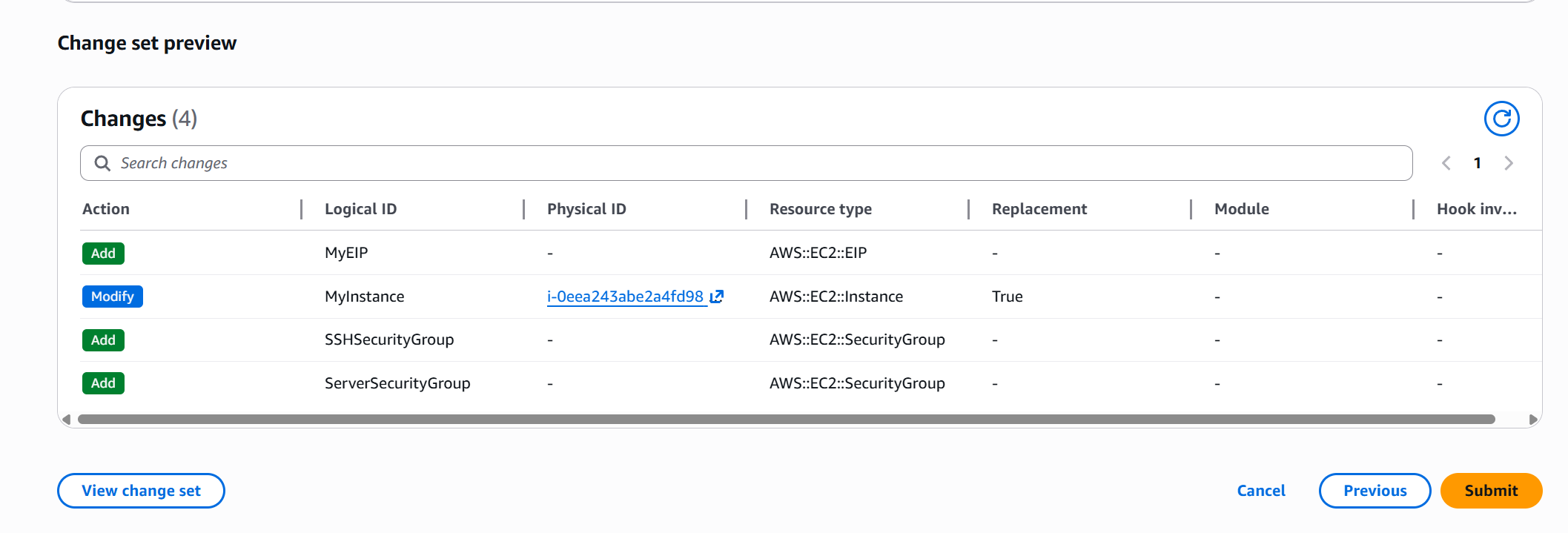
Step 9: Preview Change Set
- Review proposed changes:
- New resources: Security Groups, Elastic IP
- EC2 instance replacement (
Replacement: true)
- Note: The original instance will be terminated and replaced.
Step 10: Execute Update
- Submit the update and monitor Events.
- Verify:
- Two instances briefly (old and new).
- New instance has attached security groups.
- Elastic IP is allocated and associated.
Step 11: Inspect Resources
- In the CloudFormation stack:
- Go to Resources tab to view all created items.
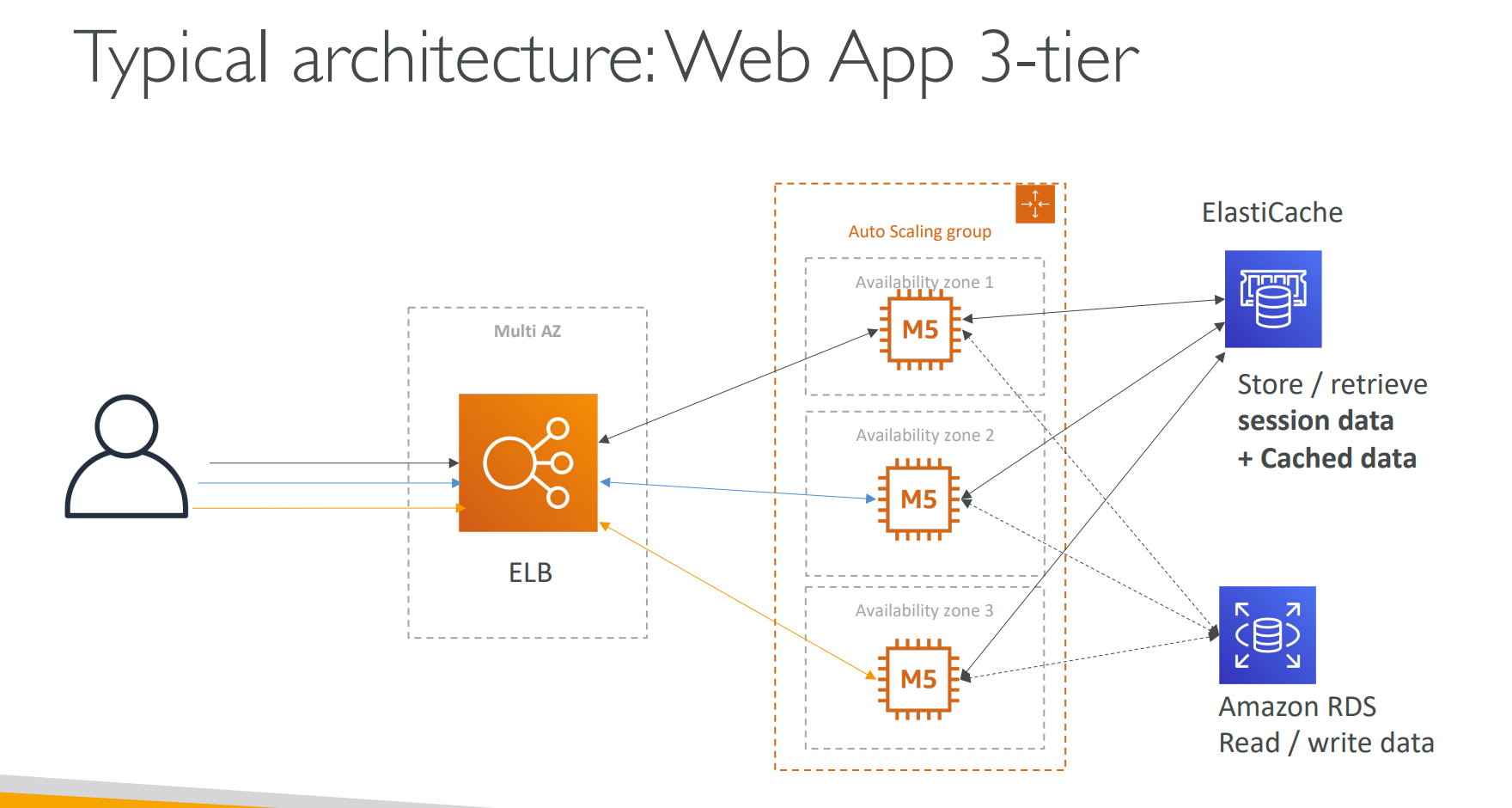
- Go to Template → View in Application Composer for a visual architecture.
Step 12: Cleanup
- To remove all resources:
- Delete the CloudFormation stack.
- CloudFormation will delete resources in the correct order.
You have successfully created and updated a CloudFormation stack with EC2, Security Groups, and Elastic IP.